
Author: Chris H.

  • Getting Started with AmpliTube 5

    Getting Started with AmpliTube 5

    If your a beginner guitarist, you may be asking “Do I really need an amplifier?” The answer is no, there are alternatives. One of these alternatives is, instead of buying a guitar amplifier, it is possible to connect your guitar to your PC/Mac and use a program to emulate the sound of an amplifier. There is a catch though, instead of an amplifier you have to buy an audio interface which converts the analogue guitar signal to a digital signal that can be used by your PC/Mac. Also, you will never really get satisfactory results unless you have a reasonably decent pair of audio monitors to reproduce the sound. If this isn’t possible, it can be made to work with headphones. There are a number of free options for simulating an amplifier and speakers in software but the one we’ll discuss today is AmpliTube 5 CS which is free software, with the option to try out and pay for additional features only if you want to.

    This article is intended to get you up and running with AmpliTube 5 CS, there is more to the program, but I’ll leave you to discover the rest for yourself!

    What interface do I need?

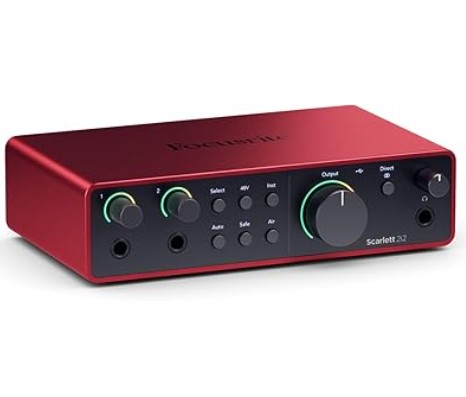
    There are a number of audio interfaces on the market which are perfectly usable. Probably one of the more widely used is the Scarlett 2i2 manufactured by Focusrite, currently on its fourth generation. There is also the Scarlet Solo which is essentially the same device but with only one input channel. I typically recommend the Scarlet 2i2 over the Solo, the two input channels offers you more flexibility for recording. If you are limited by budget though, I would go for the Scarlet Solo.

    The Scarlett 2i2 features two usable channel inputs that are accessed via two separate 1/4″ jacks on the front and two XLR inputs on the rear. A guitar, bass or microphone can be connected to these inputs. The output is via USB connected to your PC or Mac.

    There is a 48Vdc phantom power supply that is used to power condenser microphones if connected and a line input selector switch which is used if an audio source does not require as much pre-amplification. An example of this would be a device like a synthesiser or drum machine with a 1/4″ jack output.

    The pre-amp volume adjustment is above each 1/4″ jack input and has an integral LED indicator which monitors the level of the input signal, green for ok, red for too loud.

    There are also two 1/4″ mono output audio jacks for a direct connection to studio monitors if you have them.

    Finally, there is separate headphone output jack with an independent volume adjustment.

    The Scarlett 2i2 requires a driver to work correctly with your PC/Mac, I recommend using the official Focusrite driver otherwise you may end up with problems such as latency (a delay between you playing a note and the sound coming out the speaker) or audio breakup when playing.

    I also recommend not using anything Bluetooth enabled for your audio output from the PC as this can sometimes introduce latency. Also, I’m not convinced of the Bluetooth audio quality in Windows 11 if you use that particular OS.

    AmpliTube 5 CS

    To emulate a the sound of an electric guitar, a program that will model a guitar amplifier and a speaker emulator is needed and there are lots available. The ones I have used and recommend are NAM Universal, Bias Fx 2 and the one we’ll be walking through in this article AmpliTube 5 CS. All these programs can be used as a standalone app or as a plugin within a DAW (Digital Audio Workstation).

    AmpliTube 5 CS is a popular amp sim with five free amplifiers, six cabinets, ten stomp box effects, six rack effects, three moveable mics (typically dynamic and condenser mics) and six recording environments to try out.

    How is all set up?

    The following guidance assumes you have a guitar, Scarlett 2i2, PC and some output speakers or headphones. It also assumes you are using the standalone version of AmpliTube 5 CS.

    Make sure the Scarlett 2i2 drivers are installed correctly following the instructions that come with the Scarlet 2i2. All the drivers are available here.

    Make sure that AmpliTube 5 CS is downloaded and installed from the IK Multimedia website here.

    Connect the Scarlett 2i2 to your PC using the supplied USB cable and turn all inputs down to zero and you headphone/monitor volume to about the 9 o’ clock position.

    Connect your guitar to one of the input channels on the Scarlet 2i2 and slowly turn that channels input upwards whilst strumming your guitar (It is normal not to be able to hear anything at this stage). When a loud enough signal is detected the green LED should appear, keep going till it turns red and then back it off slightly. Now, strum your guitar as loudly as you would naturally play it, if it turns red, back it off incrementally some more. Repeat this until when strumming loudly it only turns green. Now your input to the PC is set up perfectly.

    Please note that any time you are playing guitar and the input strays into the red, you are distorting the input signal, and this isn’t the pleasant distortion of a tube amplifier, it’s horrible sounding digital distortion. So keep an eye on your levels! Once the level is set correctly you shouldn’t have to change it.

    Starting AmpliTube 5

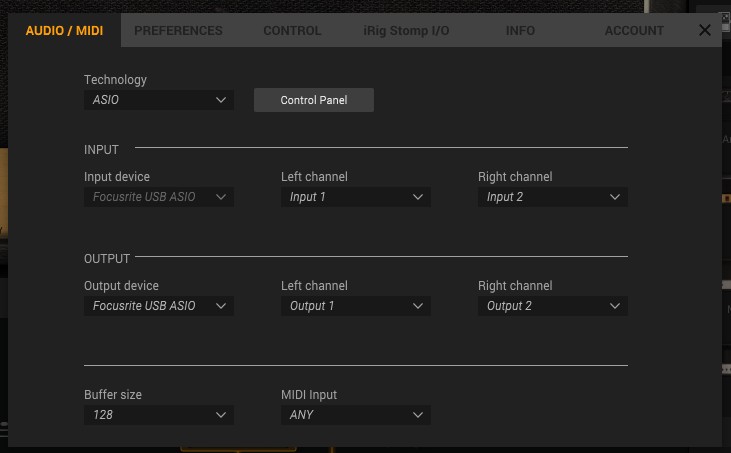
    Opening up AmpliTube 5 CS for the first time will display this screen:

    You should set Technology to ASIO and the input device to Focusrite USB ASIO as shown. The output device should be set to whatever device you want your sound to come out of, in my case I have studio monitors attached to my Scarlet 2i2 so I send the audio output back through the Scarlet 2i2 where my studio monitors are plugged in.

    Pay particular attention to the buffer size, the lower you can get it the better, but start at 512 and work your way down. Reducing the buffer size improves latency but also increases the risk of popping and cracking in the sound as the PC struggles to process the audio information quickly. For my PC a buffer size of 128 produces perfect sound and no noticeable latency.

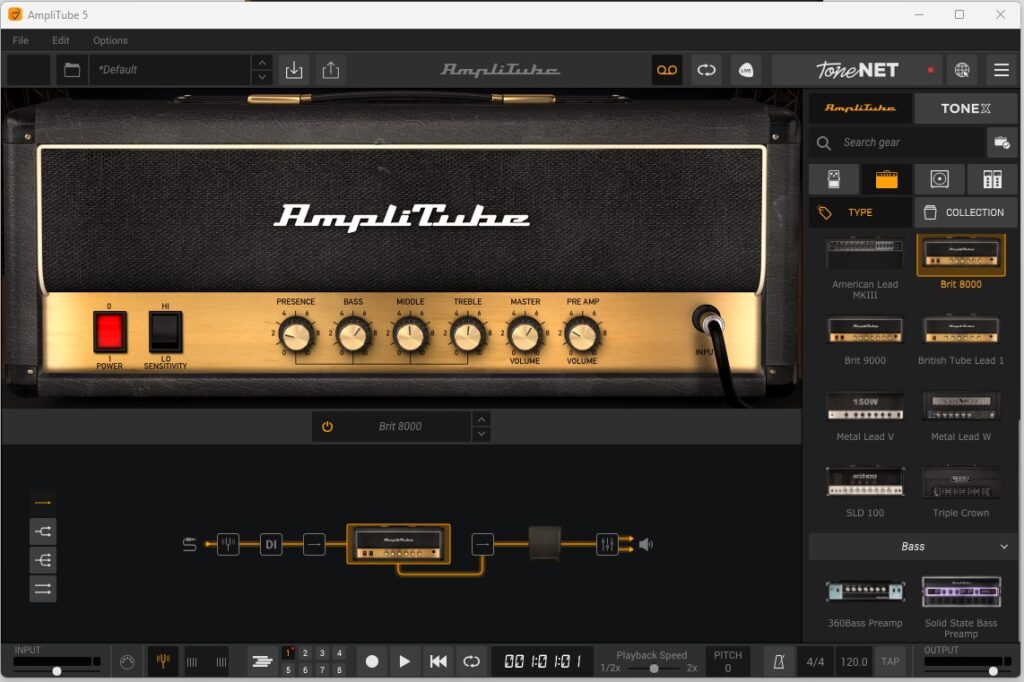
    Once your done with the settings press the cross in the top right and you should see something similar to this:

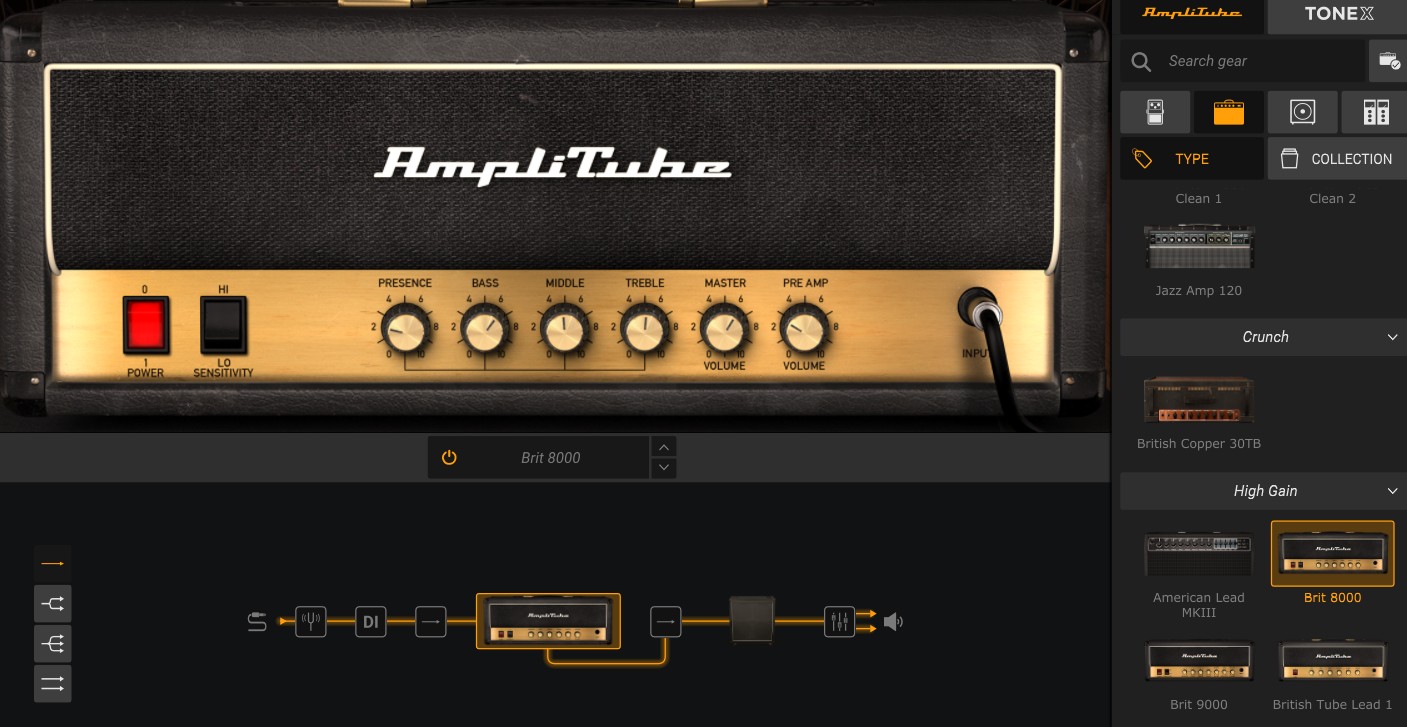
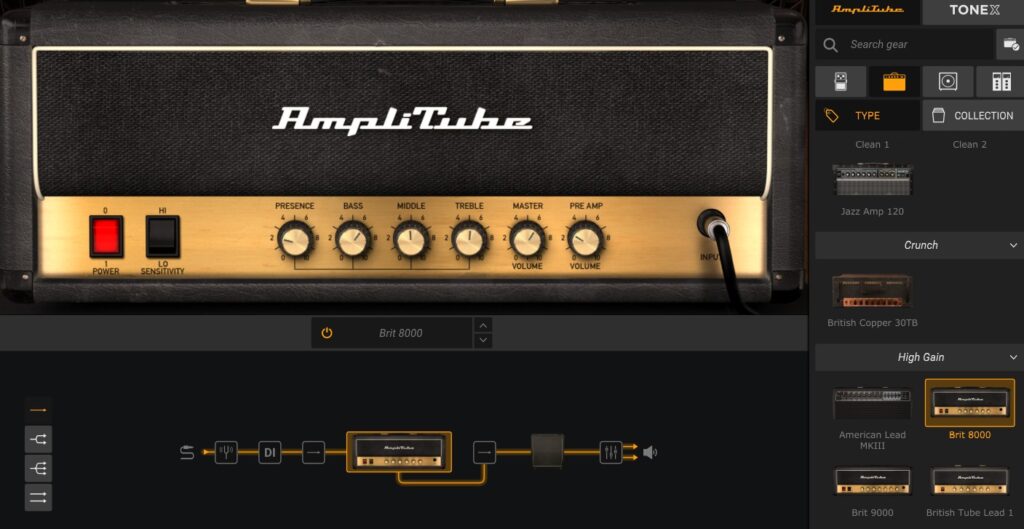
    When opened for the first time, the program opens to the default pre-set which is the Brit 8000 amplifier and the 4×12 Brit Cab with no effects. Give it a strum and try it out, you should be able to hear a lightly distorted tone which would work well with a song like “Sweet Home Alabama?” Turn the monitor/headphone volume to a comfortable level on the Scarlett 2i2 and have a play. When your ready I’ll walk you through the main features of the Program.

    Using AmpliTube 5

    Ok, I’ll start with the box at the bottom, this represents you signal chain.

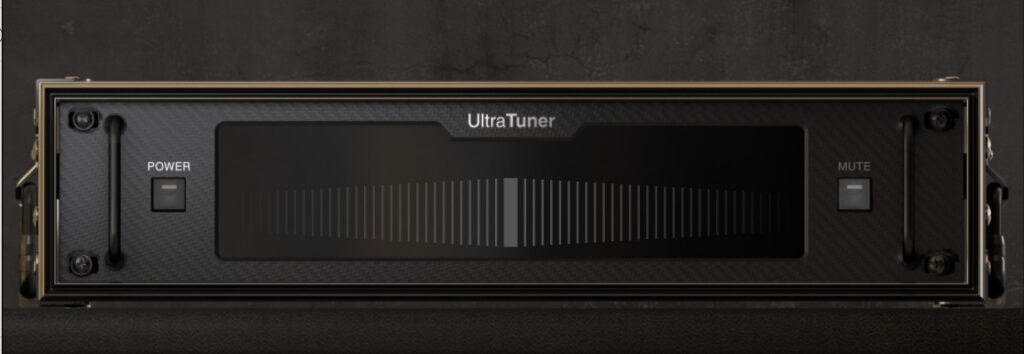
    If you click on the tuning fork icon to the left, the program will open the guitar tuner feature on the window panel above the signal chain. To use it, the power button will need to be clicked to turn it on. Pluck a string and the tuner will automatically detect the note, the idea is to get the indicator as close to the middle as possible. It is a very accurate and sensitive tuner so I find getting plus or minus 3 bars from the centre is sufficient.

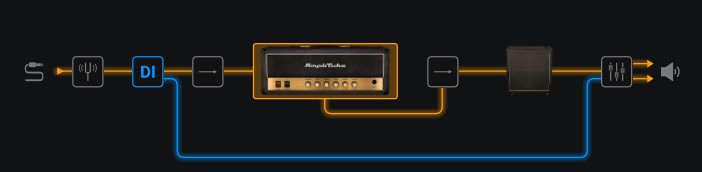
    The next item is the Direct Input option. If this icon is clicked you will notice a blue line appear from the DI box to the final mixer at the end. All this does is mix a bit of the unmodified raw guitar signal into the final output sound, how much is decided at the mixer stage at the end. It’s not a feature I would generally use but I’m sure some people find it useful. Click on the DI box again to cancel it.

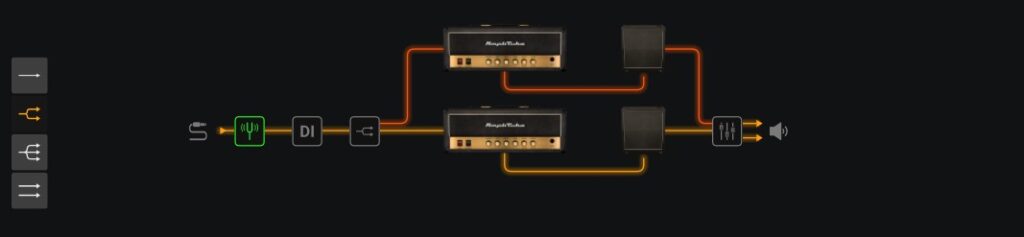
    The next button cycles through some signal chain options, if you click it once, the signal chain changes to two chains in parallel. This is useful because now it is possible to mix different amps, cabs, effects and microphones in each separate chain to produce a custom sound. If you try with the default amp/cab combo on both chains you will notice the sound is a slightly thicker sounding tone. Click it again and you have the same but with three signal chains in parallel and again, using all the same amp/cabs, it sounds very slightly thicker again. Click it a third time and it selects a parallel stereo signal chain for if you have a device with a stereo output like a keyboard, this can be played though AmpliTube as well. Guitar is a mono device so it sounds exactly the same as the single chain. Click again to return to the single chain.

    Another way of accessing this feature is, at the far left of the signal chain diagram are the four icon representing each type of signal chain, these can be clicked on directly to access the type of signal chain you require.

    Now, if you click on the amplifier, it brings up a larger version of it in the top window frame. Here you can play with all the buttons as you would a normal amplifier, so alter the master volume, presence, EQ etc. as desired here. On the right hand frame, it displays all the amplifiers that are available. Click on another type of amplifier to swap the current amplifier out the one selected.

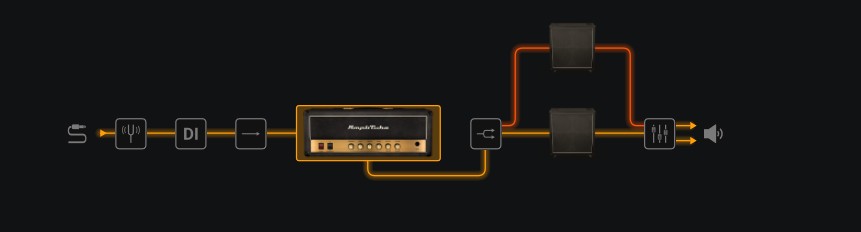
    The next button along in the signal chain allows you to output your amplifier to two speaker cabs. It will default to the same cabinet as is currently selected but you can change one or both of them and blend the sounds of different cabinets for a unique sound.

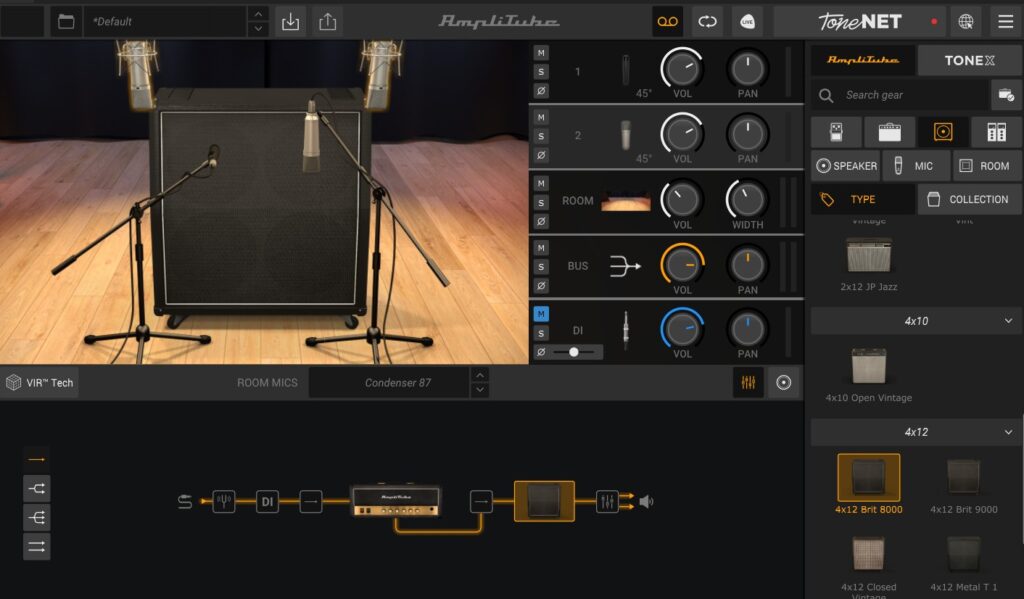
    If you next click on the picture of the speaker cab, you will find a plethora of options which will lead to hour of experimentation and fine tuning. But, at its core, you can select a different speaker cabinet, different microphone positions and types and alter the mix of all these items. For the beginner it can be a bit daunting so just select a speaker cabinet and leave it at that until you become more familiar with the program and then start experimenting.

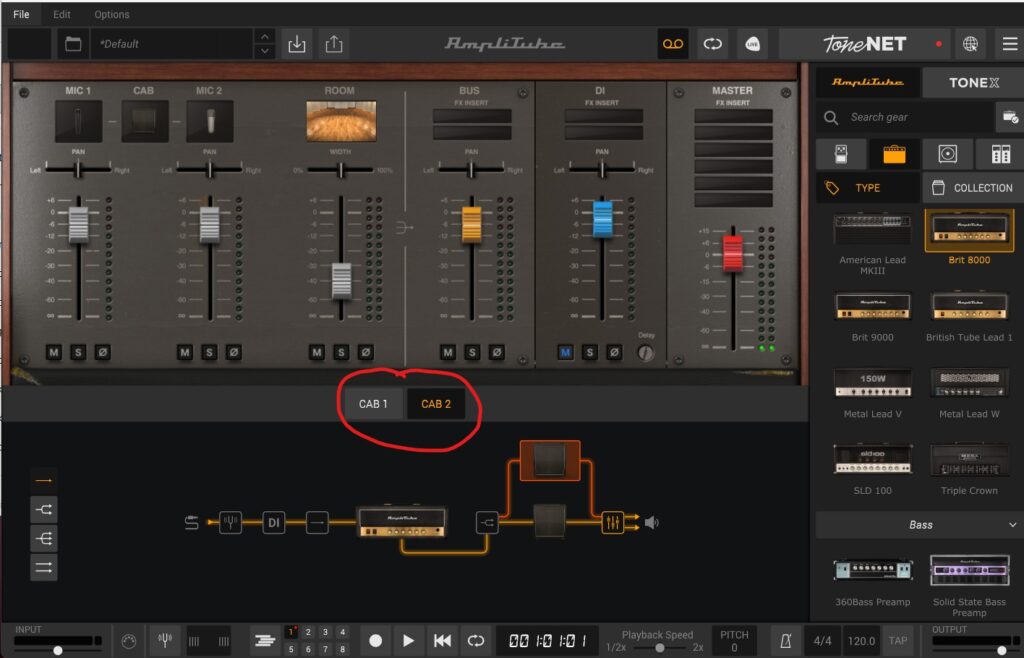
    The final part of the signal chain is the mixer, here you can alter the volume and pan of all the individual elements in your signal chain. Be aware that if you have two cabinets in your signal chain there is a mixer setting for each one just below the mixing console as highlighted below.
    Select each one to adjust the settings for that cabinet individually. One word of caution regarding digital distortion again, if any of the levels peak into the red i.e above 0dB, the signal is being distorted, not in a good way. Ideally, I would aim for a peak of -6dB on any of the channels for plenty of headroom.

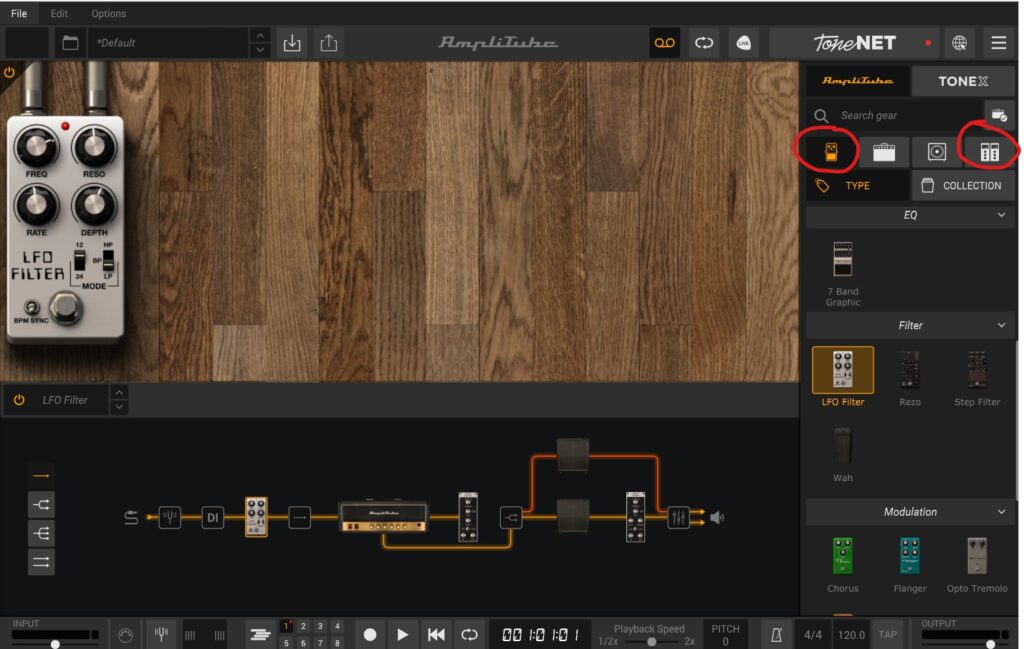
    There are two different effects types in AmpliTube 5, Stomp box and rack effects. These are found by clicking on the icons highlighted below. The effects can be inserted into the effects by dragging them into the signal chain before the amplifier or after the amplifier. As a general rule, insert the stomp box effects before the amplifier and rack ones after. There’s a whole other conversation about which order effects should go in which I’ll leave for another article! If you are a beginner, I encourage you to try out each of the individual effects to get familiar with what they do.

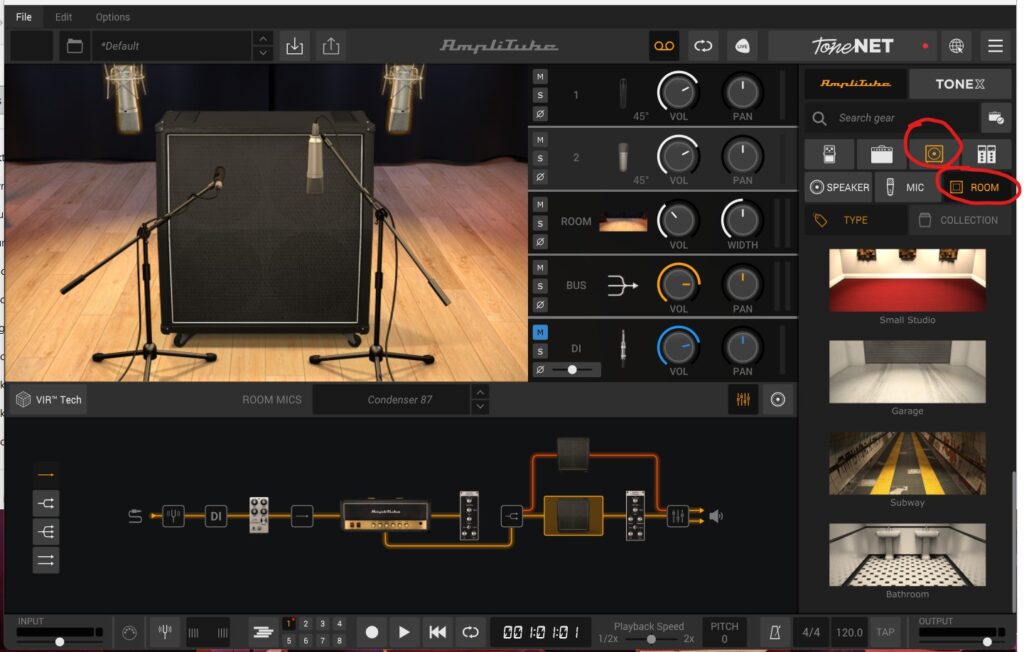
    Another handy feature to know about is that the environment in which the speaker cabinets are located can be changed and this provides an opportunity to further modify the sound. To alter this click on the speaker icon and the the room icon as highlighted below. The user is then given the option of different studios, a garage, subway and bathroom environment which are fun to experiment with.

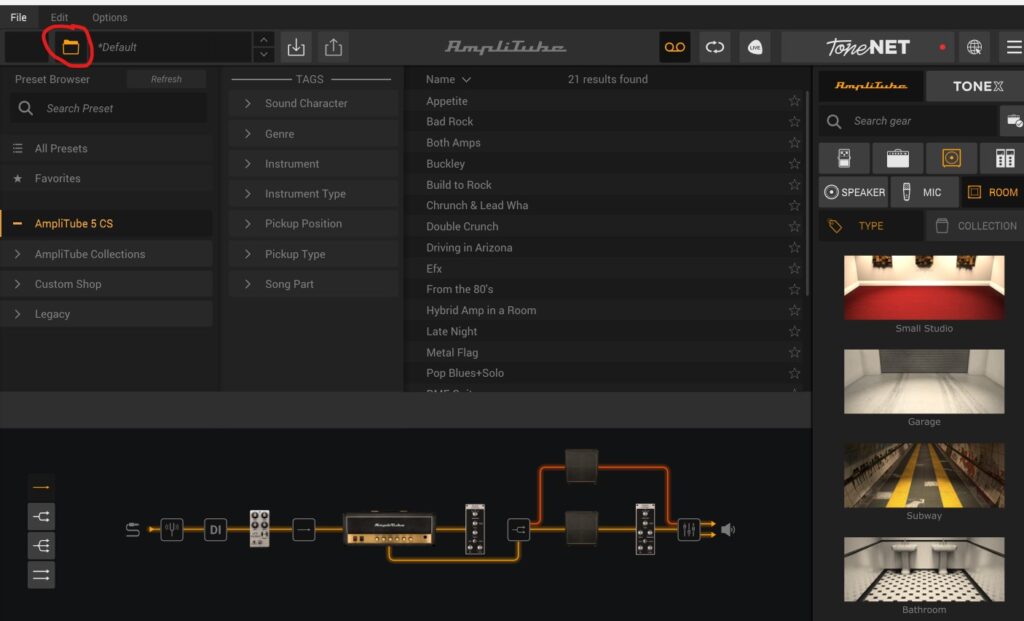
    The last feature I’m going to highlight is the pre-sets. These can be accessed by the folder icon in the top left of the screen. Clicking on this shows a pre-set browser, if you click on AmpliTube 5 CS it brings up a number of pre loaded pre-sets to explore and have fun with. I find that if I am looking for a particular sound, browsing these tends to get me close and then I can tweak the signal chain to get it perfect. If you manage to make a tone that you like you can also save it as a pre-set to access later.

    Final Thoughts

    I hope this was helpful in getting you up and running with this excellent free program. There are a few more features on the standalone version which I haven’t mentioned such as the eight track recording facility, looper and more. I’ll leave you to discover these for yourself.

    If you need a Scarlett 2i2, or Scarlet Solo, please consider buying through the link on my Recommended Kit page as it helps to support this website! thanks!

  • The Positive Grid Spark Go

    The Positive Grid Spark Go

    When I was learning to play electric guitar, back in the 90’s, you generally bought an amplifier along with your first guitar. It’s fair to say that it would not be the best sounding amplifier and you were limited with the tones that you would be able to produce with it. If you wanted to change the sound beyond this, you would have to start investing in pedal effects. As a beginner guitarist, this can be quite an investment, maybe more than you want to spend, and also it could be quite daunting, how do you know what effects make what sounds? What you actually want as a beginner is the freedom to explore, lots of different sounds and effects and preferably at a reasonable price. Simply put, the Positive Grid range of Spark amplifiers is just that. The range includes the Spark Neo, Spark, Spark 2, Spark Mini and Spark Edge, but the Spark Go is the one I want to talk about today as I think it is the most suitable for the beginner guitarist. I would have loved something like this when I was starting out!

    So what is it?

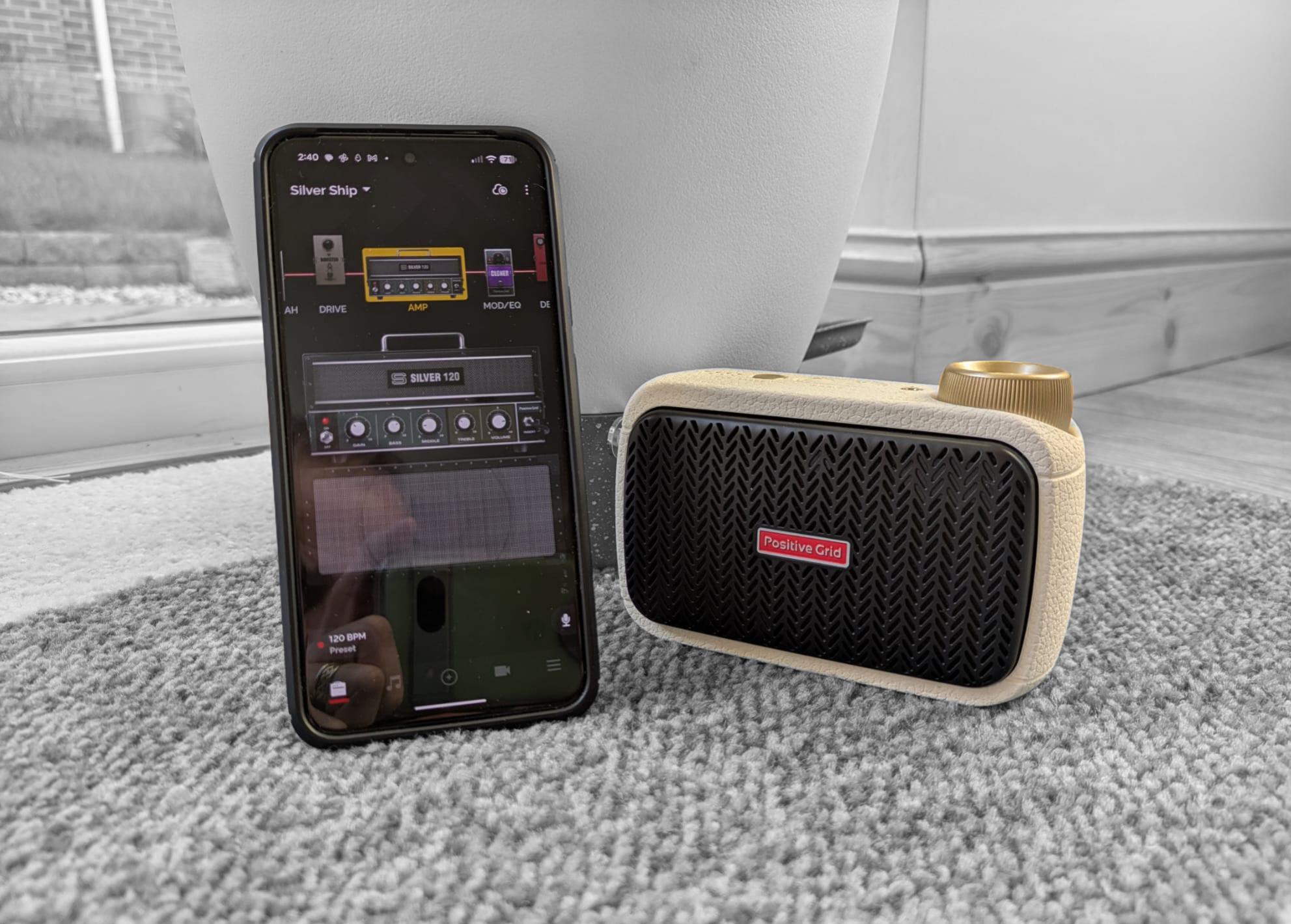
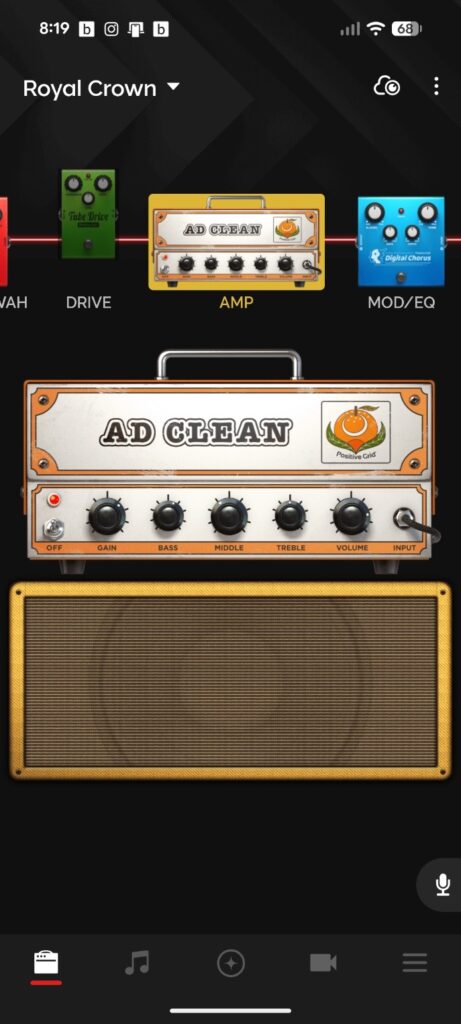
    The Spark Go is a 5W smart amplifier, it uses software to model the sounds of effects and amplifiers through a 2″ built in speaker. The amp itself is tiny, it measures about 9cm tall (3.5″), 13.5cm long (5.25″) and is 5cm deep (2″). The Spark Go comes in two colours, black and an off white. It features 33 different amplifier models and 43 different effects. It works with your phone, using the Positive Grid Spark app, to select an amplifier and an effects chain. It has a 24 pre-loaded configurations for you to try out and you can customise and save your own which can be assigned to one of four channels. In addition to this the Spark App provides access to the Tone Cloud where a community of Spark users upload their own tones built up from various configurations which are all downloadable to your device.

    Beyond this it also features a tuner, metronome, an AI assistant, Auto Chords (play the song you want to learn through the app, the app analyses the song and displays the chords) and Smart Jam (play a song idea and the app will provide an AI written bass and drum backing track for your chord progression).

    If this wasn’t enough, it also functions as a portable Bluetooth speaker for you to play tunes from your phone through and it is light enough carry anywhere.

    The Spark Go feels well built and solid, the input jack/volume knob is sturdy it looks and feels good to turn. The casing side, top and bottom is made from a kind of rubberised plastic that feels like it would withstand being dropped a time or two.

    What’s in the box?

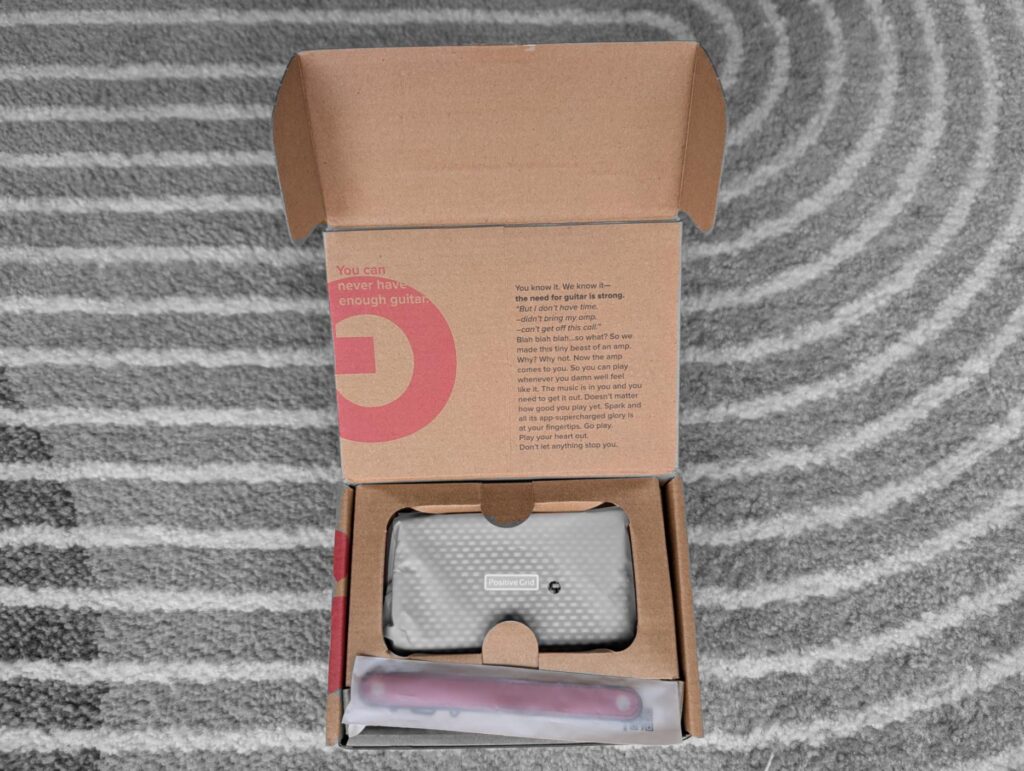
    The Spark Go arrives with a couple of things that are worth mentioning.

    Firstly, it comes with two different style grille covers, they are easily replaced, the front grille is held on via a couple of small magnets. Secondly, it comes with a couple of carrying straps, again different colours, so you can modify the look of the amp slightly. Finally, a USB C charger cable is included in the box. A full charge can give you up to eight hours use according to Positive Grid. Also the USB-C cable can be used to connect to your PC and download software updates.

    How do you use the Amp?

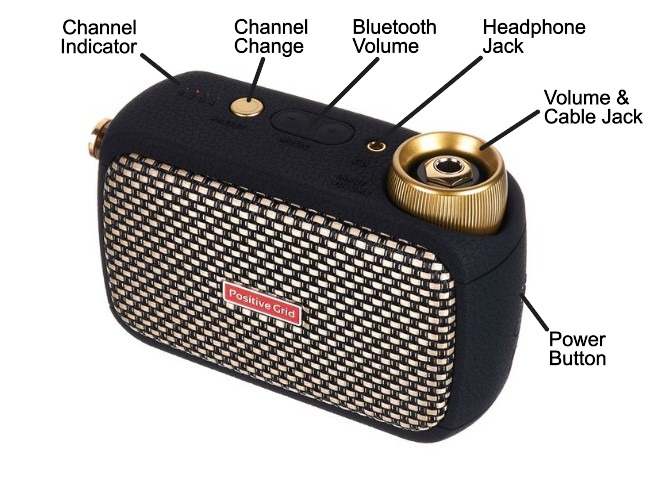
    The Spark Go is really simple to use once paired with your phone, which is the normal Bluetooth pairing process. Plug your guitar into the amp via the cable jack, turn on using the power button, if you don’t connect to the app, the amp will default to the pre-sets last loaded into the four channels. You can change channels sequentially by pressing the channel button and to alter the volume simply twist the gold volume/jack knob. The Bluetooth volume button only works when your using the amp as a Bluetooth speaker.

    What’s my favourite feature?

    The feature that impresses me most is the AI assistant. One of the most frustrating things about being a guitarist is searching for “that tone”. One day you love how your guitar sounds, the next you want to set fire to the damn thing because no matter what you do it sounds like a bag of angry hornets. The AI assistant helps you find the tone you want and sets up the amplifier and effects chain into a pre-set which you can return to at any time.

    To demonstrate this I recorded three samples. In the interests of total openness, I’ve recorded the sample clips in a digital audio workstation (DAW) called Reaper. The Spark Go was close mic’d using a single SM57 microphone and interfaced to the computer using a Scarlet 2i2 audio interface. Where the AI provided digital delay or reverb effects, I’ve turned them off and reproduced them as closely as possible in Reaper, this was done to give the guitar part a wider stereo image which would be impossible if I used the Spark Go effects. The bass was played and recorded by myself using various plugin effects in the DAW and the drums were recorded using Steven Slate Drums SSD5 which is a drum sequencer. Finally, there are various audio plugins in use i.e. compressors, parametric EQs etc, but no more than what you would hear on a normal record and I am in no way a professional audio engineer, I’m an intermediate amateur at best!

    For the first demonstration I asked the AI assistant to provide an AC/DC tone for the song Back in Black. I think the AI produced a reasonable facsimile of the AC/DC tone, see what you think!

    For the second demonstration I asked the AI assistant to provide a tone for the track Sisters by Steve Vai. This tone is clean with a bit of reverb and delay thrown in on the original record. My honest opinion is that the AI couldn’t quite get this one right, there wasn’t enough reverb and delay added into the chain and when I replicated it in Reaper, I did end up tweaking these up a bit. however, the end result isn’t too bad.

    For the third demonstration I asked the AI assistant to produce the rhythm tone Izzy Stradlin used in Sweet Child o Mine by Guns N’ Roses and the lead tone used by Slash. I think it got Izzy’s rhythm tone about right, but it definitely overcooked, the lead sound with too much gain (distortion) and I ended up turning that down a lot.

    All in all the AI assistant certainly gets you fairly close to the tones you want. There may a bit of adjustment needed to get you the rest of the way, but it’s definitely removes a lot of the hassle of experimenting with different amplifiers and effects to get the sound you want.

    It’s really small, how loud can it actually go?

    If you are a beginner, there are loads of guitar amps on the market which will do absolutely fine for learning to play, usually these amps are 10-15 Watts and go far louder than you actually need for learning and practice. Yes, the 5W Spark Go won’t be as loud as these amps, but it is loud enough to be heard in a room comfortably.

    I measured the volume approximately 3m away from the speaker. The speaker was pointed away at 90 degrees and I measured around a peak 80db noise level on the default clean setting. At this volume you could hear the speaker distorting slightly. This is louder than I would normally play for practice.

    It’s alright me quoting an 80db noise level, but how loud is it? Well, according to Control of Noise at Work regulations 2005 which, ironically, excludes the music and entertainment sector you must provide workers with information and training when exposed to an 80dB level regularly, although hearing protection isn’t required until levels reach 85db. so you’ve been warned, don’t turn it up too loud!

    So the answer is, its loud enough for practicing in a room and it won’t annoy your neighbours too much.

    Accessories

    If needed the Spark Go is compatible with a wider ecosystem of accessories produced by Positive Grid.

    Spark Control X – A 6 switch wireless pedal for changing presets, toggling effects, and controlling backing tracks.

    Spark Link – A wireless transmitter/receiver system to remove cable clutter.

    Spark Cab – A 140W cabinet designed to make spark amps louder for live performances.

    Spark Go Carrying Case – a snug fitting carrying case designed for the Spark Go.

    In addition to the Spark Cab, if you already have an amp lying about you can connect it to the Spark Go. The recommended way is to connect the 3.5mm jack on the Spark Go to the return input for the FX loop on your bigger amp. You will probably need an adapter to get from the 3.5mm jack to the 1/4″ Jack on your amp.

    Is there anything I don’t like?

    Despite all the good things about the Spark Go, there are a couple of issues that irk me.

    The Spark App occasionally disconnects from my phone when I move it to the background to look at another app, what makes things worse is it won’t then connect to the amp again when I restart the app and I have to completely restart the amp and app again to get it re-connect. To be fair there is an update pending for my Spark Go that I haven’t bothered with, so this may fix the issue.

    This issue may be particular to me rather than the beginner guitarist, but allegedly you can use the Spark Go as an audio interface for recording into a DAW, but I haven’t figured out how to make this work in Reaper, which is my DAW of choice! I believe it works for Studio One as there are videos on the Positive Grid Website demonstrating its use.

    Final Thoughts

    It is possible to buy cheaper practice amps aimed at the beginner for half the price of the Spark Go (around £95 at the time of writing this post on Amazon UK). But, with all the available tone settings and features, the Spark Go offers a lot more versatility. If you were to buy the physical versions of the effects pedals alone, it would be many more times the price of the Spark Go.

    Additionally, the Spark Go is a system that can be expanded as your playing progresses to include a setup that is perfectly viable for practicing in a band or playing live.

    I hope you have found this review of the Spark Go useful. If you think the Spark Go may be right for you, and you would like to purchase one. Would you please consider buying it through the link on my recommended kit page as it goes to help support this website.

  • Locking Tremolo Setup

    Locking Tremolo Setup

    The Floyd Rose double locking Tremolo system is widely regarded as the first locking tremolo system when he first invented it in 1970’s. Floyd D. Rose invented this system in the early 1970’s, with the first prototype built around 1976. He refined it through additional prototypes in 1977 before receiving the key U.S. patent on October 23, 1979.

    Floyd Rose passed away in early 2025 at age 77 so I’ll never get the chance to meet him. If I had gotten to meet him, I honestly don’t know whether I would hug him or strangle him! The tremolo system is absolutely brilliant when it’s all setup up and working correctly. You can abuse the whammy bar to your hearts content and it will stay in tune, but, whilst changing strings is a bit more complicated, if you ever want to change the gauge of the strings or drop tune the E string to D or lower, the balance of the entire system is thrown out and it can be a painful experience to balance it again.

    Anatomy of a Locking Tremolo System

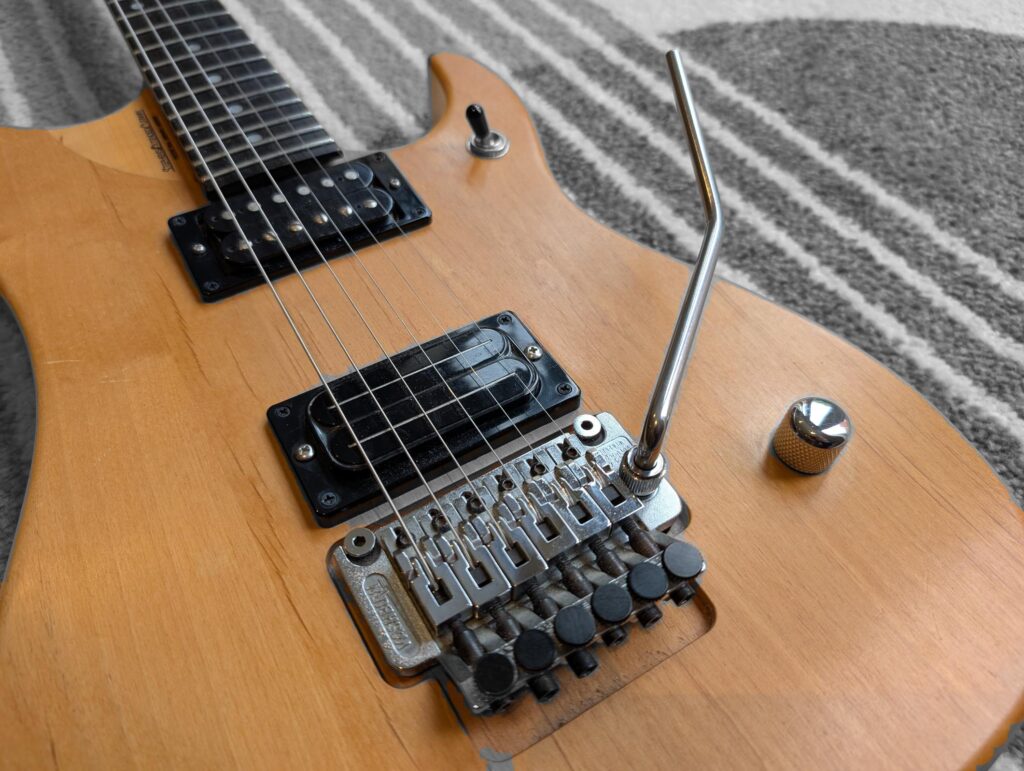
    The locking tremolo consists of three parts. First there is the locking nuts at the top of the fretboard usually consisting of three Allen (hex) bolts which clamp the top of the strings before the tuners.

    Next there is the bridge. The action and intonation can be adjusted here, this is where the ends of the string are clamped rather than threaded though like other bridges and also there are some fine tuners for each string.

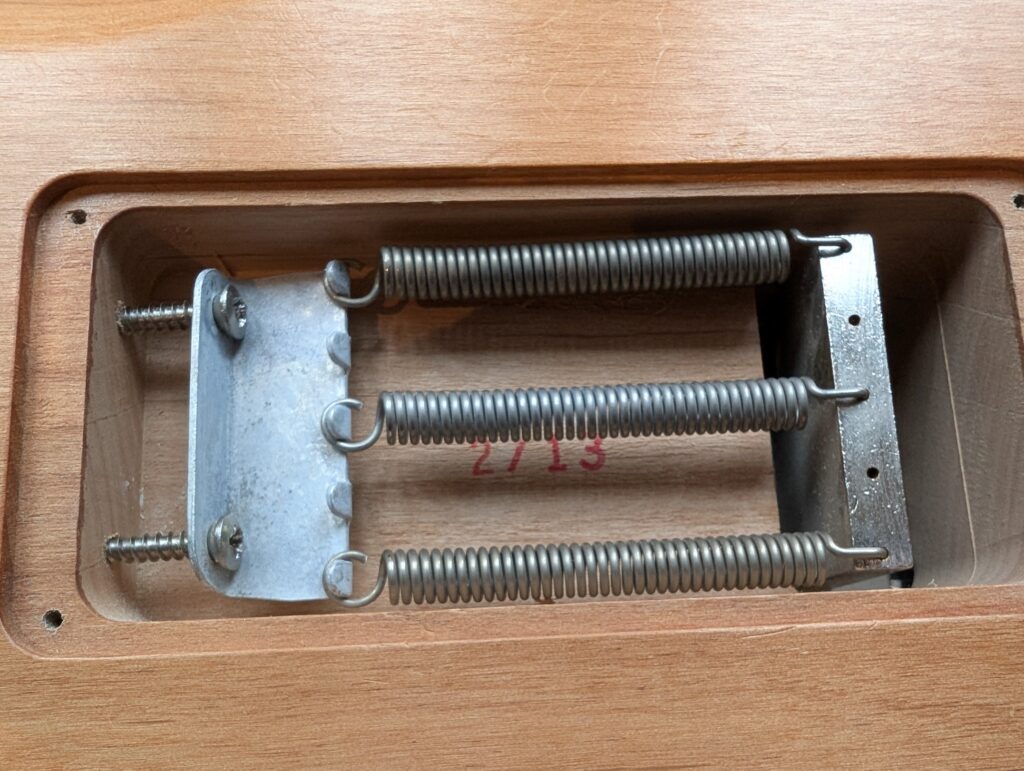
    Finally in the back of the guitar you will find the springs which counterbalance the tension of strings. When the locking tremolo is set up and balanced, the bridge should be perfectly flat.

    What You’ll Need

    • New set of strings.
    • String winder (optional but makes life easier).
    • Wire cutters.
    • 3mm and 2.5mm hex keys (usually included with your guitar).
    • Tuner (clip-on, pedal, app – anything accurate).
    • Soft cloth and, if you want, fretboard cleaner/conditioner.

    Step 1: Immobilise The Bridge

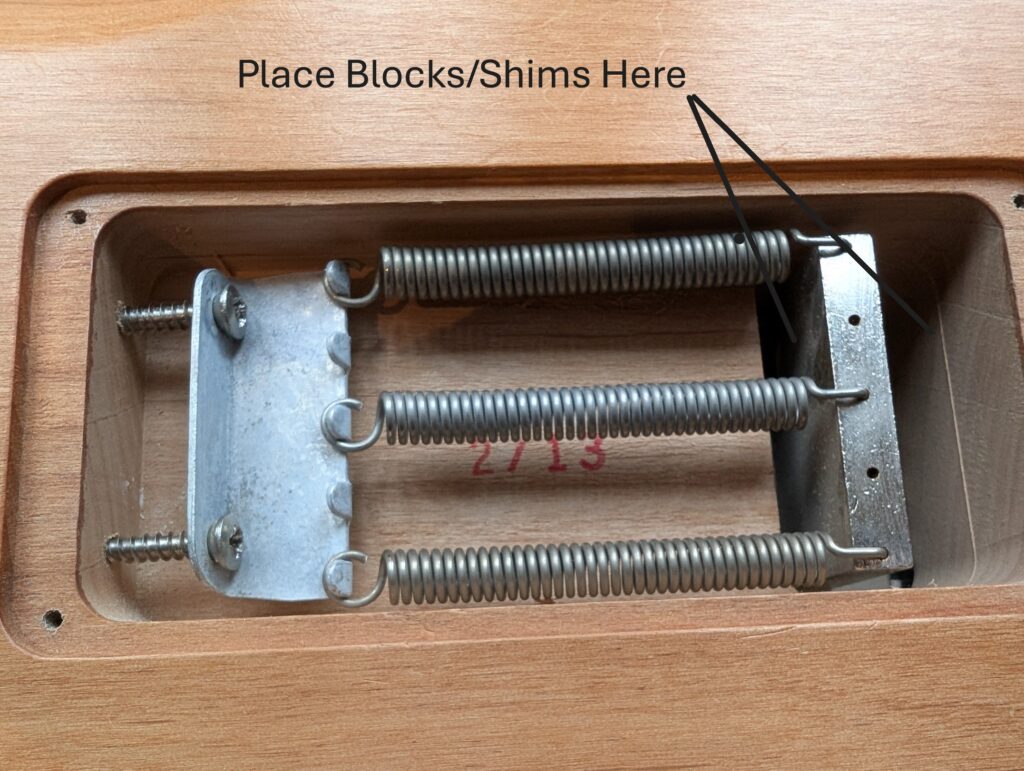
    I have found that this makes it far easier to change the strings. Simply place an obstruction such as two bits of wood cut to size or stack it out with some plastic shims/packers either side of the tremolo block at the back of the guitar to stop it moving during the string change.

    Step 2: Unlock the Nut and Loosen the Strings

    Start by setting the fine tuners at the bridge to halfway — this gives wiggle room later for precise tuning. Then, use the correct hex key to loosen the locking nut clamps at the top of the neck. Now unwind each string slowly to release tension.

    Step 3: Remove the Old Strings

    Each string is clamped into the bridge block rather than threaded through like on a fixed bridge. Use your hex key to slightly loosen the saddle clamp screw for that string. The small metal block will release, and you can remove the string end from the saddle.

    At this point you may want to apply fretboard cleaner & conditioner.

    Cut off the ball end of the new strings and insert the freshly cut end into the saddle slot, tightening the clamp screw securely — but don’t overtighten it (I did this once!) or you will strip the threads of the screw and then you’ll need a new saddle slot.

    Step 4: Install and Tune the New String

    Good stringing at the tuners is the key to tuning stability. A simple, reliable method:

    • Pull the string up to its tuner, all the strings should be on inner side of the guitar.
    • Wrap the string round once below the hole in the tuner peg.
    • Wrap the string round again above the hole in the tuner peg.
    • Stick the end of the string through the hole and pull tight. This locks the string in place and increases tuning stability.

    Repeat for all six strings, working methodically (for example low E to high E).

    Step 5: Tune & Lock

    Tune each string in turn, once all strings are in tune, remove the blocks/shims/packers from the tremolo block. If you have changed the gauge of the strings or the tuning it is likely that the tremolo will no longer be flat and the guitar will be out of tune. If you have changed to the same gauge strings it is likely that everything should still be roughly in balance. In any case follow these steps if the plate is out of balance:

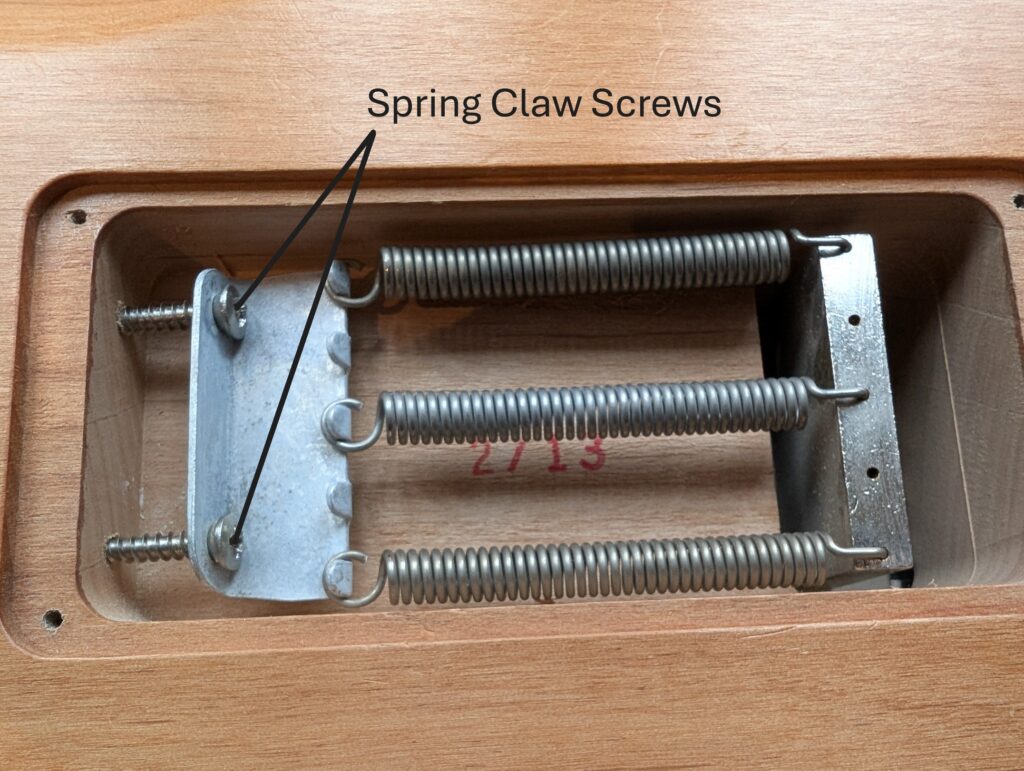
    1. If it’s tilting forward , tighten the spring claw screws (turn clockwise) equally on the back of the guitar.
    2. If the tremolo plate is titling backwards, loosen the spring claw screws (turn anti clockwise) equally on the back of the guitar.
    3. You should find that as the plate levels, the guitar will become in tune again or not far off. Adjust the tuning now so that it is in tune again. If necessary, you may have to adjust the spring claws to level out the tremolo and retune again, but if you have blocked the tremolo during the change then you should have to do this fewer times!

    Step 6: Lock it down

    When everything feels stable and the tremolo returns to a neutral position, lock the nut clamps again. These should be tightened a little more than finger tight, do not over tighten.

    Use the fine tuners at the bridge to bring each string into perfect tune.

    Step 7: Stretch and Settle

    Play some wide bends and light tremolo dips to ensure the strings are stretching evenly. Retune again using the fine adjusters. After 10–15 minutes of normal playing, tuning stability should lock in beautifully.

    Final Thoughts

    Changing strings on a locking tremolo might take a little longer, but once you’ve done it a few times, it becomes second nature. The payoff — a guitar that stays perfectly in tune even after wild dive-bombs — is well worth the effort.

    I hope this guide is useful, if you have any ideas about subjects for beginners you would like to see me writing about, please leave a comment below or send me an email via the contacts page.

  • Changing Guitar Strings

    Changing Guitar Strings

    Changing electric guitar strings is simple once you have a clear routine. This post walks through the whole process, plus a few practical tips to keep the guitar playing and tuning well. This guide is for guitars without a locking tremolo system which are a bit different. Please see this post for a guide to locking tremolo systems.

    What you need

    Before starting, gather:

    • New set of electric guitar strings in your preferred gauge.
    • String winder (optional but makes life easier).
    • Wire cutters.
    • Tuner (clip‑on, pedal, app – anything accurate).
    • Soft cloth and, if you want, fretboard cleaner/conditioner.

    Having everything to hand stops you leaving the guitar half‑done on the bench. Please see my recommended gear page for any of these items if you do not have them.

    Step 1: Prepare and loosen the old strings

    Start by placing the guitar on a stable surface, ideally on a table with a towel or mat and some support under the neck, usually a thick book or two will work just fine for this. Then:

    • Turn each tuner to slacken the strings until they have no real tension and flop loosely.
    • Once slack, either unwind them fully from the tuners or cut them around the 12th fret and remove both halves.

    Be careful cutting – only cut once the strings are fully slack to avoid any sharp recoil.

    Step 2: Remove and clean

    With the strings off:

    • Pull the ball ends out of the bridge or tailpiece (through‑body on a Strat/Tele, through the tailpiece on a Tune-o-matic style, etc.).
    • Take a minute to wipe the fretboard, frets and body area that’s usually hidden by the strings.

    If the fretboard is very dry or grimy, use a small amount of fretboard cleaner or conditioner.

    Step 3: Fit the new strings at the bridge

    Open your new string set and lay them out from thickest (low E) to thinnest (high e).
    Then:

    • Feed each string’s ball end through its correct hole in the bridge or tailpiece
    • Pull the string through until the ball seats firmly in place

    Check they sit properly and are not snagged or half‑seated, especially on through‑body designs.

    Step 4: Attach at the tuners

    Good stringing at the tuners is the key to tuning stability. A simple, reliable method:

    • Pull the string up to its tuner, all the strings should be on inner side of the guitar.
    • Wrap the string round once below the hole in the tuner peg.
    • Wrap the string round again above the hole in the tuner peg.
    • Stick the end of the string through the hole and pull tight. This locks the string in place and increases tuning stability.

    Step 5: Wind up to tension

    Using your hand or a string winder:

    • Keep gentle tension on the string with your free hand while turning the tuner.
    • Make sure each new wrap coils neatly below the previous one, not crossing over itself.
    • Confirm the string is sitting correctly in the nut slot and over the bridge saddle.

    Repeat for all six strings, working methodically (for example low E to high E).

    Step 6: Stretch and tune

    Fresh strings always go out of tune until they settle. To speed that up:

    • Bring each string roughly up to pitch with your tuner.
    • Gently stretch it by pulling it away from the fretboard around the middle (7th–12th frets), a few times along its length.
    • Re‑tune and repeat stretch/tune cycles until the pitch stabilises.

    Do this for all strings; it makes the guitar far more stable when you start playing.

    Step 7: Trim and final checks

    Once everything holds pitch:

    • Use wire cutters to trim any excess string sticking out from the tuner posts, leaving a few millimetres if you like.
    • Run a final tuning check across all six strings.
    • Play some chords and bends to confirm tuning stability and that each string rings clearly.

    If anything buzzes or sounds muted, check the string is properly seated in the nut and bridge, and that the wraps at the tuner are neat. if there is nothing obvious, please check my guitar setup post for further ideas.

    Final Thoughts

    With this routine, changing strings becomes a quick, regular part of maintaining your guitar. Over time you’ll get faster, and you can refine details (like string gauge or brand) to suit your own feel and tone.

    I hope this guide is useful, if you have any ideas about subjects for beginners you would like to see me writing about, please leave a comment below or send me an email via the contacts page.

  • A Beginners Guide To Setting Up An Electric Guitar

    A Beginners Guide To Setting Up An Electric Guitar

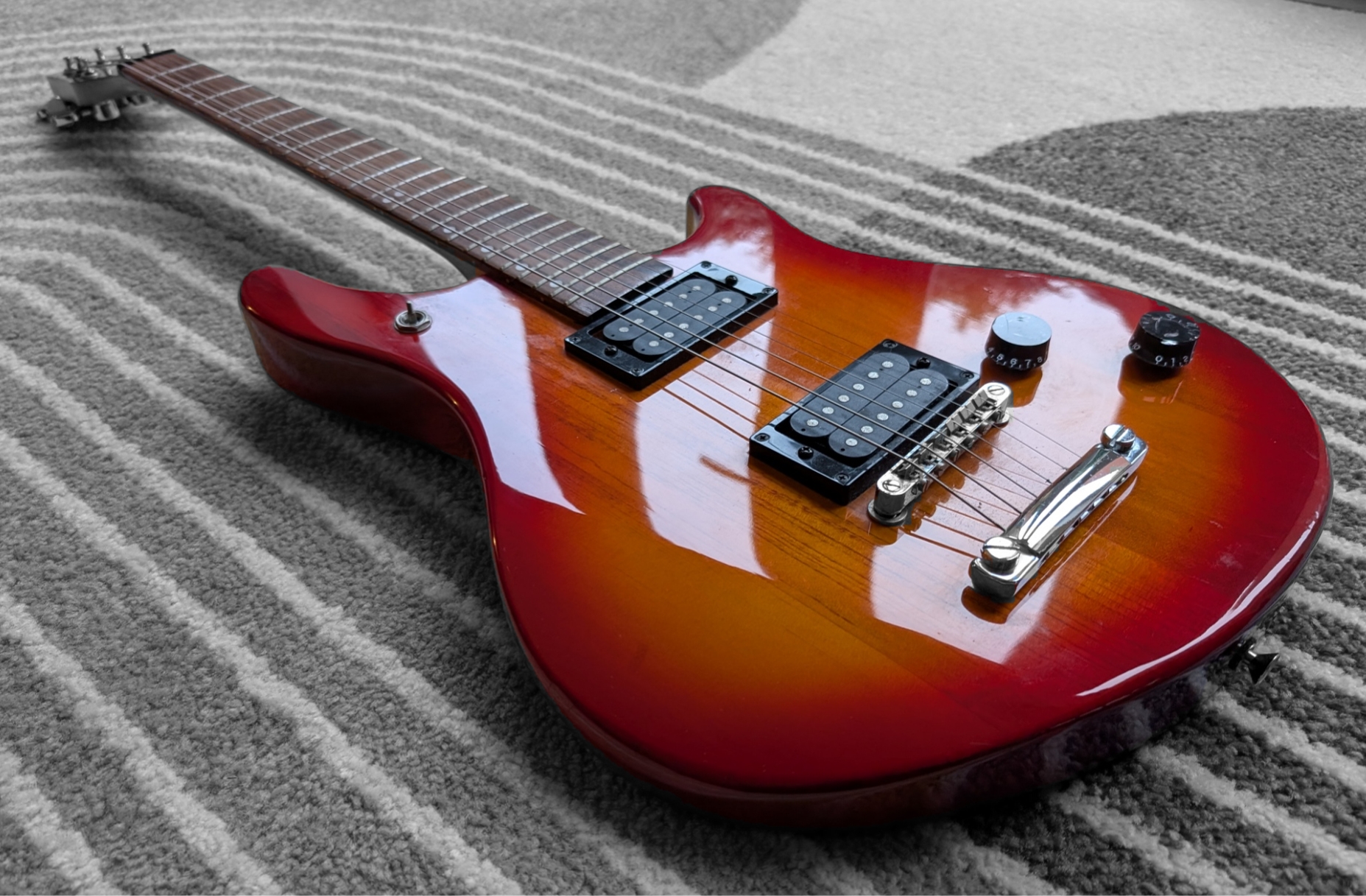
    When you first get your brand new guitar, it is unlikely to be set up to play well unless you get it from a reputable guitar shop which should set it up for you before handing it over. While it may be tempting to get an expert to tweak your brand new pride and joy, taking the time to learn how to set up a guitar as you would like it, or diagnose and fix any little niggling issues is time well spent and rewarding.

    Whilst much of the arrangement of an electric guitar are fixed at design by the manufacturer, considerable scope for adjustment remains. These adjustments may seem daunting to the beginner, but with a little knowledge and experimentation you can be well on your way to being able to being your own guitar tech. You will be surprised at how much improvement in playability of a guitar can be achieved from a properly set up guitar, and how easy it is to keep it in top playing shape despite any changes in temperature, humidity, handling and maybe a change in string gauges.

    Before we get into the nitty gritty a few notes to bear in mind:

    • Whilst all guitars are fundamentally similar, any given brand or model will have its own nuances. This guide should be considered a supplemental addition to any manufacturer information. I refer to metric based setup parameters, but I’ll put inches in brackets afterwards. If your guitar manufacturer specifies different parameters, these should be adhered to instead.
    • Always make adjustments at room temperature and keep the instrument at the correct tuning throughout the setup process.
    • Setup starts with the truss rod, followed by the bridge, the intonation and finally the pickup height, find a flat surface to work on with good lighting, lay down a towel to prevent scuffing/scratching, a couple of thick books should support the neck to stop any unintended re-tunes whilst laying the guitar flat! Allow about an hour for the first setup, any re-visits should go a bit quicker.
    • For best results any measurements should be taken in the upright position to avoid any influence from gravity.
    • Any setup specifications I have provided are really just a starting point. For example, some players prefer a flatter neck and will try to set it as flat as possible without any fret buzz, others may want extremely low action at a specific part of the neck and might use a combination of setups to achieve that goal. Once you become more familiar with setting up the guitar, feel free to experiment, always make small adjustments at a time to achieve the setup you desire.
    • Locking tremolos are out of the scope of this particular guide. I have written about how to change strings and set up a locking tremolo here. If you have a locking tremolo on your guitar I suggest you read this and then come back to this guide and pick it up again at Step 1, nearing in mind the differences for your guitar.

    Changing Strings

    The ideal time to undertake a complete setup is following the installation of a new set of strings, please refer to this guide for a tutorial in changing strings. If you have a locking tremolo system on your guitar, try this guide instead.

    Tools

    Usually the correct allen(hex) keys should be supplied with your guitar for truss rod, intonation and string clamps. depending on the model of your guitar a flat or phillips head screwdriver may be required for some adjustments. In addition to these a feeler gauge, capo and guitar tuner is also required. If your short of any of these items please look at the recommended kit page where a decent guitar toolkit is highlighted.

    Step 1: The Truss Rod

    No other adjustment strikes fear into the heart of would be guitar tinkerers than the truss rod, this adjustment is thought to be able to destroy your guitar with one ill thought out tweak!

    Whilst it is certainly true that you can damage your guitar, taking the time to understand the purpose of the truss rod and making small adjustments, with purpose, should help alleviate any anxiety.

    Imagine the guitar lying flat on a surface, the strings act on the guitar neck to create a slight upward bow, this is desirable within a certain range but can cause playability issues if it is excessive.

    To counteract the action of the strings on the guitar, manufacturers install the truss rod inside the neck with a nut at one end. Tightening the bolt i.e. turning it clockwise makes the neck more resistant to the action of the strings and flattens the neck. Loosening the bolt on the truss rod i.e. turning the bolt counter clockwise has the opposite effect, allowing the strings to bow the neck more. Only make small adjustments to the truss rod should be made at a time!

    It’s worth noting that the truss rod adjustment point is most commonly located at the top of the neck, sometimes covered by a piece of plastic near the nut of the guitar or, more annoyingly, at the other end where the neck meets the body. In this case you have to loosen the strings, sometimes you may even have to take out the pickup near the neck to get to the truss rod any time you need to adjust it!

    Since the neck is made of wood, it won’t immediately be obvious that anything has changed if you make an adjustment to the truss rod tension. It is advisable to wait between adjustments; I generally allow 10-15 minutes between adjustments allowing things to settle before deciding if a further tweak is needed.

    My preferred way to ascertain if adjustment is needed is to measure! The tools you need for this are:

    • A Capo
    • A Feeler Gauge

    The technique is as follows:

    1. Attach the capo to the 1st fret,
    2. Depress the highest fret of the lower E string (the thickest one!).
    3. Find the midway fret between the capo and your finger on the highest fret (usually the 8th fret).
    4. Measure the clearance between the midway fret and the string.
    5. A good starting gap to aim for is 0.25mm (0.010”).
    6. If the string height is more than this this, the strings are winning, and the truss rod should be tightened (turn the nut clockwise).
    7. If the string height is less than this, the neck is winning, and the truss rod should be loosened (turn the truss rod nut counter clockwise).
    8. Make small adjustments, no more than a quarter turn at a time. Leave for 15 minutes, check the tuning and repeat from step 5 again until you are satisfied.
    9. Truss rod adjustments may require some force but if you sense abnormal resistance, take it to a professional for assessment.

    Step 2: Action

    Action refers to the height of the string above the fretboard. The higher the action (higher the string is away from the fretboard, the harder it is to play as you require more hand strength to fret the note on any particular string. Conversely, the lower the action (the closer the string is to the fretboard), the more likely the instrument is to suffer from fret buzz, that annoying buzzing sound when a note is fretted, but due to the curvature of the neck, the string may catch on a fret higher up the fretboard.

    Setting up the action is a compromise or balance of getting the string height just right so that the string is as low as possible for playability, but not so low as to cause fret buzz. The action is generally altered at the bridge. There are a few different styles of bridge that offer different arrangements for increasing /decreasing the action height.

    Most commonly, the action is adjusted by two saddle screws at either side of the bridge.

    To check the action, measure the height of the string height with a ruler balanced on the fret itself at the 17th fret and adjust the string height to about 2mm (5/64″) above the fretboard using the bridge adjustments particular to your type of guitar. Work in small increments of 1/4 -1/2 turns. A clockwise turn will lower the height and a counter clockwise turn will raise the height of the strings. Make equal turns on both sides of the bridge to keep it roughly level although the thinner strings don’t move as much so the action can be set slightly lower on that side without running into buzzing issues.

    The action of the guitar can be set to a wide range of preferences, some guitarists prefer a low action so they can perform lighting quick solos and may even tolerate a certain amount of fret buzz to achieve it, others prefer a higher action. Use the height provided as a start and experiment to see which you prefer.

    Now is a good time to check the height of the strings at the nut of the guitar, this can be a good test as, even if set up correctly, if there is a problem with the nut, there may be issues. the height of the string at the first fret should be above 0.5mm (0.020″), if it isn’t, this may indicate wear at the nut and it may require replacement, which is beyond the scope of this guide. A quick dirty temporary fix would be to pack the offending string slot by placing a shim under the string, a sturdy piece of card might work.

    Step 3: Intonation

    Intonation, simply put, is how in tune your guitar is along the fretboard. for example, if you were to play an open low E string (thickest string) and then play 12th fret of the same E string you are playing the note E an octave higher. Both notes should be an E, and if they are not there is an issue with intonation.

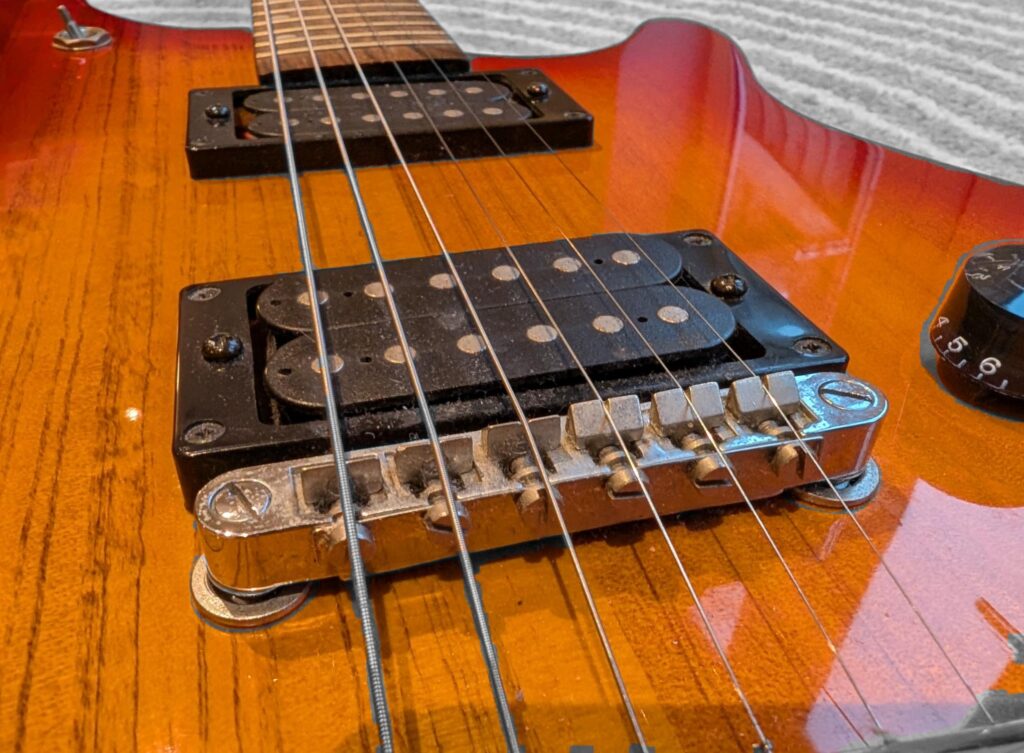
    As can be seen in the photo above, there is a screw associated with each string, each type of bridge usually has a similar arrangement. Each screw can be adjusted to lengthen or shorten the playable length of the string.

    The use of a tuner is recommended for this part of the setup, simply turn on the tuner, and start on the lowest string. Play an open note and then fret the 12th note of the same string and pluck. Note the difference between the notes. If the fretted note is sharp (higher), tighten the screw which lengthens the string, if the note is flat (lower) loosen the screw which shortens the string. After adjustment try the test again and adjust until the open note and fretted note are the same. Repeat this sequence for each string until all your strings are correctly intonated. It is common for all the strings to be at different lengths when correctly intonated. I’ve no idea why this is!

    Step 4: Adjust Pickup Height

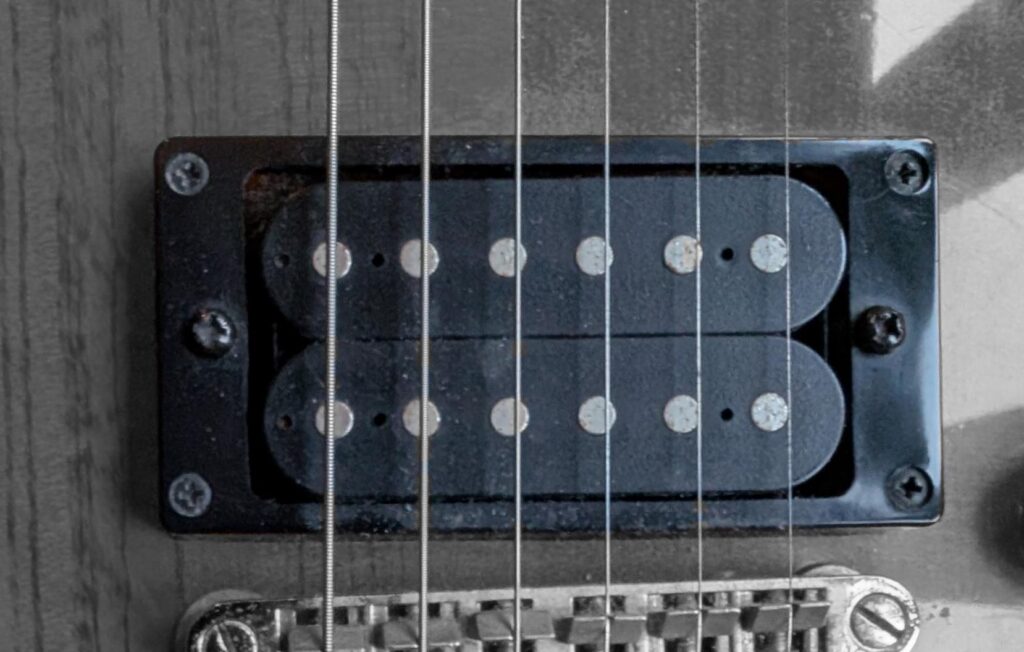
    A guitar pickup works via the metal strings vibrating within a magnetic field produced by the pickups on the guitar, this produces a small alternating electric current, which is sent out via your guitar lead to an amplifier, which then replicates the sound of your guitar string being played.

    The pickup height can be adjusted, usually via the two screws on either side. turning the screw clockwise will raise the height of the pickup, turning it counter clockwise will lower the height of the pickup.

    A good starting point is for a clearance of 1.5mm (1/16″) between the pickup and the high E string (thinnest string) and 2mm (still generally rounded to 1/16″) at the low E (thickest) string. Generally speaking, the closer the pickup to the string, the louder it will be, the lower it is, the quieter and more mellow it will sound.

    If your guitar has more than one pickup, try and get them to the same height and then adjust as necessary so they are about the same volume.

    Final Thoughts

    With this final adjustment, the setup is complete. Now all you have to do is learn to play the thing, which is a whole other journey!

    I hope this guide is useful, if you have any ideas about subjects for beginners you would like to see me writing about, please leave a comment below or send me an email via the contacts page.